Should I try Fast Cleaner before buying a new phone?
Try a media cleanup first if full storage is the problem and the rest of the phone meets your needs. Fast Cleaner can help review unwanted media. Consider repair, official update support and essential hardware requirements separately when deciding whether to replace the device.
Buy a new phone when your current one can no longer meet an important need, and a reasonable cleanup or repair will not fix it. If it still handles your day reliably, keeping it is a valid choice—even when a newer model looks appealing.
The difficult part is separating a problem you can solve from a limitation you have outgrown. Full storage, short battery life, unreliable apps, and missing camera features can all feel like “I need a new phone.” They lead to different next steps.
- Start with the task your current phone cannot do reliably.
- Review storage, repair options, and software support before shopping.
- A cleaner can help you review unwanted media. It cannot replace a battery or add hardware features.
- Upgrade when the benefit matters in your daily life and the total cost fits your budget.
1. Name the problem before choosing a phone
Think about the last few times your phone let you down. Did a recording stop because storage was full? Did the battery run out on your commute? Did a work app stop supporting your software? Write down what happened and how often.
“I cannot record my child’s school event without clearing space first” gives you something specific to solve. “My phone feels old” leaves you comparing features that may have little effect on your day.
Wanting a new phone for enjoyment is also a reasonable personal preference. Treat that as a purchase you want, rather than assuming the current phone has become unusable.
2. If storage is full, try a cleanup first
A phone packed with unwanted recordings and duplicate pictures may still have useful life left. Review its storage categories, remove downloads you no longer need, and check unused apps before deciding you need more capacity.
On Android, Google’s storage guide explains how to review usage and remove files or unused apps. It also distinguishes file storage from the memory used to run software. Deleting videos frees file storage; it does not add RAM.
Back up important files and understand your photo service’s deletion behavior before removing anything. Then repeat the task that was blocked. If you can record, download, and update comfortably again, you have addressed the immediate issue.
If your essential files repeatedly fill the phone even after careful review, consider an archive, cloud access, or a device with more capacity. Our guide to cleanup before buying a new phone covers this storage-specific decision in more detail.
You can also download  Fast Cleaner: AI Photo Clean.
3. If battery life is the problem, investigate service
Needing to charge more often does not, by itself, tell you that the whole phone needs replacing. Check battery health and usage information, and ask a service provider whether a replacement battery would address the problem.
Apple’s battery and performance guide explains that battery aging can affect capacity and performance. A battery service may be worth considering when the rest of the device still meets your needs.
Get a quote for your exact model and location. Apple’s service page notes that the final fee depends on inspection and that authorized providers can set their own prices. For other phones, check the manufacturer’s repair options.
Compare that quote with the phone’s remaining software support and any other repairs it needs. A battery replacement makes a different proposition when the screen, charging port, and camera also need attention.
4. If it feels slow, find out where it feels slow
Try the activities that matter to you: opening the camera, using maps, making a video call, or switching between work apps. Does the problem affect everything, one app, or only tasks that need an internet connection?
Apple’s performance troubleshooting guide identifies several possible causes, including network conditions, limited storage, temperature, and battery health. Follow the relevant checks before attributing every delay to the age of the processor.
If important tasks remain unreliable after troubleshooting or service, an upgrade becomes easier to justify. Choose a replacement based on those tasks. Someone editing video on their phone may need capabilities that a person using messaging and maps rarely notices.
5. Check software support for your exact model
Before spending money on a repair—or buying an older replacement—check the manufacturer’s current update information. Look at security support as well as whether the phone runs the apps you depend on.
Support periods differ by model. Google’s Pixel update page, for example, publishes model-specific support information and directs owners of other Android devices to their manufacturer or carrier. Use the equivalent official guidance for your own phone.
If support has ended or an essential app no longer works, include that limitation in your replacement decision. Freeing storage cannot extend a manufacturer’s update commitment.
6. Pay for features you will actually use
Write down the feature you want and when you would use it. Better low-light photos might matter if you regularly photograph indoor events. A larger screen may help with reading. More local storage can matter when you need large files offline.
Try the feature in person where possible. A specification is useful only if it translates into a change you value. Also consider size, weight, accessibility, and how comfortably you can use the device for everyday tasks.
You do not have to choose the newest flagship to solve a specific problem. Compare suitable models, including refurbished options, against the same needs. For a refurbished device, check battery condition, warranty, returns, and remaining software support.
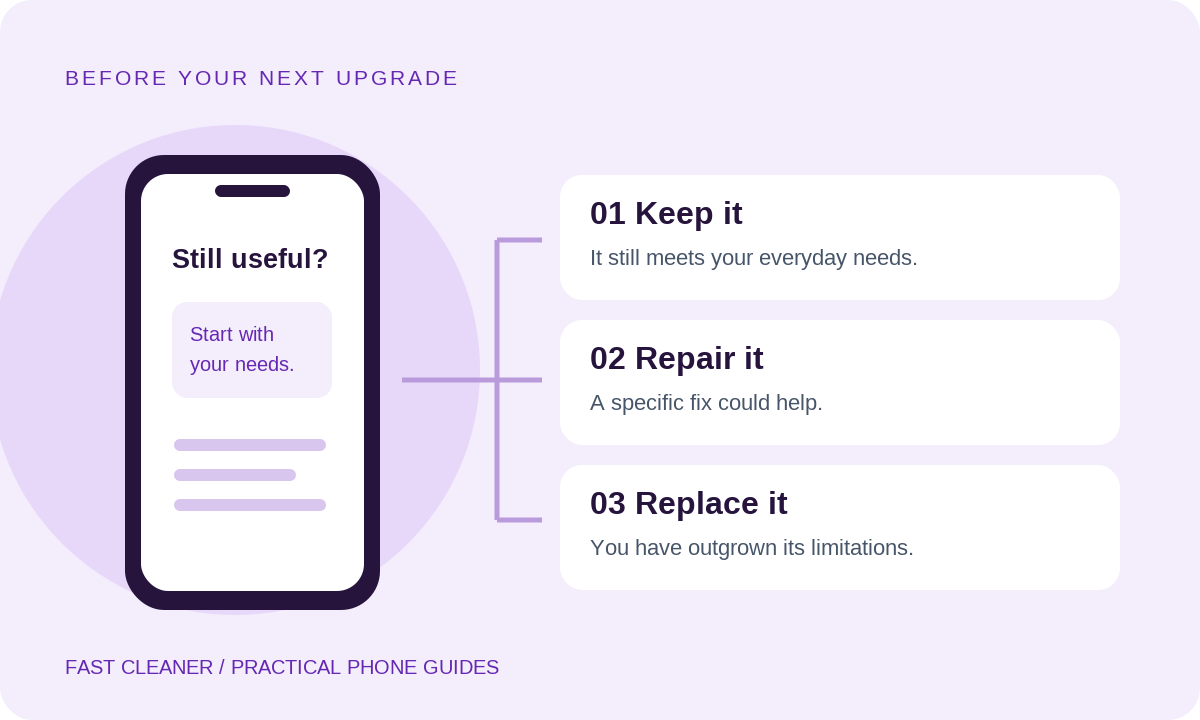
Keep, repair, or replace?
Use these four paths to organize your decision. They are starting points for comparison, rather than a diagnosis of your device.
Keep it
Your phone still handles essential tasks, receives the support you need, and becomes comfortable to use after manageable cleanup or settings changes.
Explore storage cleanup →Repair it
A specific repair could restore useful service. Get a quote, check warranty coverage, and weigh it against other faults and remaining support.
See Apple battery service →Replace it
Essential tasks remain unreliable, support no longer meets your needs, or the repairs and limitations make keeping it unattractive.
Prepare your buying checklist →Reassess later
You have no urgent problem and are unsure what an upgrade would improve. Note what frustrates you during normal use before deciding.
Define what needs to change →Compare the full purchase cost, including accessories, financing charges, and any change to your mobile plan. Deduct only trade-in value you can realistically receive. A small monthly installment can obscure the total commitment.
For a repair, consider what the quoted work fixes and what remains uncertain. There is no universal percentage of a new phone’s price that makes every repair worthwhile.
A worked comparison: suppose a battery repair costs ₹5,000 and a suitable replacement costs ₹40,000 plus ₹2,000 in accessories, less a verified ₹6,000 trade-in. The replacement outlay is ₹36,000. These are illustrative prices, not quotes. Compare the ₹5,000 repair with that outlay, the faults it fixes, and your model’s remaining support; a lower immediate cost does not make a repair the right choice for every phone.
Your checklist before buying a new phone
Review each question before opening your shopping cart. Checking a box records that you considered the question; it does not mean you should upgrade.
You have reviewed all five questions. Use your answers to compare keeping, repairing, and replacing your phone.
Your selections stay in this page’s memory and reset when you reload. No account or submission is required.
Give your current storage a closer look.
Fast Cleaner helps you find duplicate and similar photos, review screenshots, and compress videos. Start with your phone’s built-in tools, or explore Fast Cleaner if you want help organizing media for review.
Review files before deletion. Storage results vary by library; cleanup cannot repair hardware or guarantee a faster phone.
Common questions
How many years should I keep a phone?
There is no single replacement age that suits everyone. Use reliability, software support, repair options, and your daily requirements to decide.
Will cleaning storage make my phone feel new?
It may resolve a capacity problem and help when limited space contributes to trouble. It cannot add a newer processor, restore an aging battery, or supply missing camera hardware.
Should I replace the battery or buy a phone?
Compare a service quote with the condition and support of the rest of the phone. A repair is worth investigating when the battery is the main issue and the device otherwise meets your needs.
Is wanting a better camera a good reason to upgrade?
It can be if the improvement matters to you and fits your budget. Compare results in the situations you actually photograph before paying for it.
Keep, clean, repair, or replace?
| Situation | Useful first check | Role of Fast Cleaner |
|---|---|---|
| Storage blocks a recording or download | Inspect storage categories and review unwanted media. | A candidate for photo and video review. |
| Battery life is unreliable | Inspect battery information and service options. | Not a battery repair. |
| Security support has ended | Read the manufacturer’s model-specific update policy. | Does not extend update support. |
| A required hardware feature is missing | Compare a device that actually supplies it. | Does not add physical features. |
Google’s wording:
security updates.
Google publishes model-specific support periods for Pixel phones. Other Android owners should check their own manufacturer rather than assume one universal support window.
Platform source: Google — Pixel software update support, checked November 21, 2026.

Where Fast Cleaner fits
Use Fast Cleaner if the immediate obstacle is media storage, then repeat the activity you could not finish. That gives you a practical decision point without inventing an app benchmark.
Fast Cleaner’s privacy policy describes on-device media analysis with separate limited analytics. Compare Android and iPhone pricing.
Continue with Can Fast Cleaner help me keep my current phone longer?.
Guidance reviewed November 21, 2026; confirm current service quotes and model support before spending. Platform guidance is linked beside the relevant claims. Update commitments and service prices can change; check the official information for your model and location. The decision framework is editorial guidance, not a hardware diagnosis.