Are photo cleaner apps safe to use?
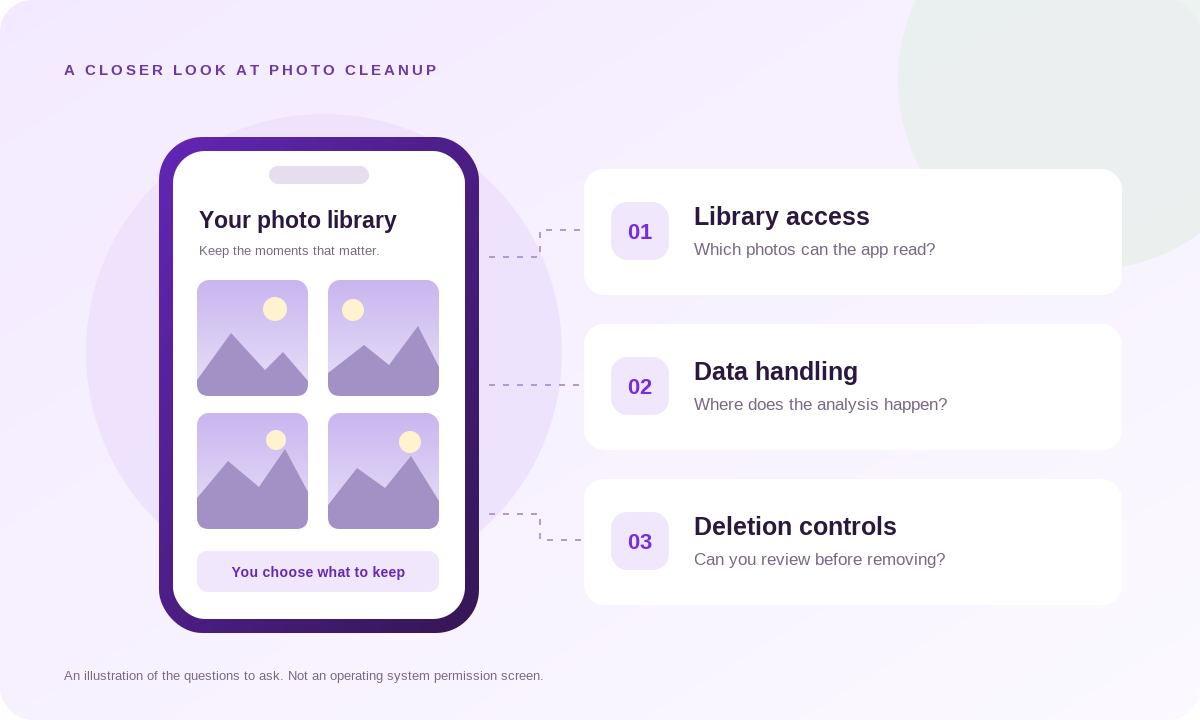
A photo cleaner can be useful when its permissions, data handling, deletion controls, and billing terms fit your needs. Judge the individual app by what it can access, where it processes your media, and how it handles deletion. A high rating or an “AI-powered” badge doesn’t answer those questions.
This guide links to Apple and Google documentation so you can check the platform facts yourself. It is published by Fast Cleaner, a photo cleanup app developer, and is a consumer checklist rather than an independent security audit of any app.
- Photo access, photo uploads, and usage analytics are different things. Check all three.
- Store privacy labels help you ask questions; they don’t certify an app’s safety.
- Review deletion candidates and understand your backup settings before a bulk cleanup.
- Check the trial terms and renewal price before you subscribe.
1. Check which permissions the cleaner needs
Match each permission to the feature you intend to use. A tool needs access to the photos it scans. A contacts-cleanup feature may need contacts access. If you only want to sort pictures, ask why unrelated access is requested.
Apple’s Photos & Privacy explanation distinguishes full library access from access limited to photos you select. It also notes that photo access can include associated information such as location metadata. A whole-library duplicate scan may need broader access than a tool working on a handful of selected images.
Limited access can reduce the library available to an app, but it can also limit what the app finds. Missing duplicates may simply be outside the photos you allowed it to read.
2. Read the store privacy label and the policy together
Look for an explanation of the actual data types and purposes. On the App Store, open the App Privacy section. On Google Play, open Data safety and its detailed view. Then compare those descriptions with the developer’s privacy policy.
Apple says App Store privacy information is reported by developers. Google likewise explains that developers describe their practices in the Data safety section. These disclosures are useful starting points, not a substitute for understanding the app.
Read what the terms mean. Google’s guidance describes exceptions to when information must be labeled “collected” or “shared,” including certain service-provider transfers. A short label such as “not shared” does not, by itself, explain every data flow. The policy should provide the detail you need.
Search the policy for “photos,” “videos,” “analytics,” “third parties,” and “retention.” If you cannot tell whether media leaves the phone, ask the developer before granting broad access.
3. Separate photo analysis from uploads and analytics
Ask where your media is analyzed and what else is transmitted. An app may process photos locally while using a service for crash reports, usage measurement, or payments. Local photo analysis and zero network activity are different claims.
For example, a policy might explain that photo matching happens on the phone while screen-view events are sent to an analytics provider. Another app might upload media for analysis. With uploads, you also need answers about retention, access, and deletion of the remote copies. Cloud processing alone is not evidence of wrongdoing, but it creates more questions to resolve.
On iPhone, App Privacy Report can show data access and contacted domains after you enable it. Use it as a clue to investigate. A domain contact doesn’t reveal the content sent, and an offline scan alone doesn’t prove an app never communicates later.
Our guide to on-device photo cleaning explains the difference between local analysis and a separate cloud photo service.
4. Review deletions and check what happens to backups
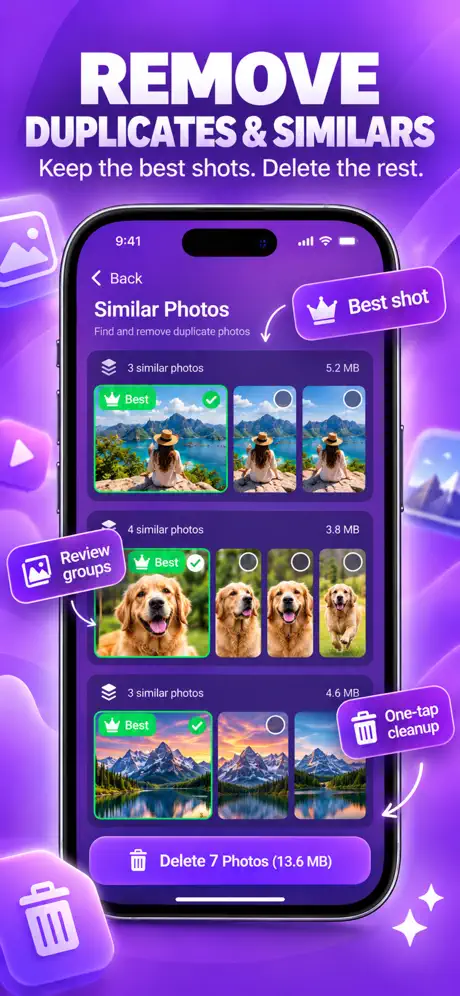
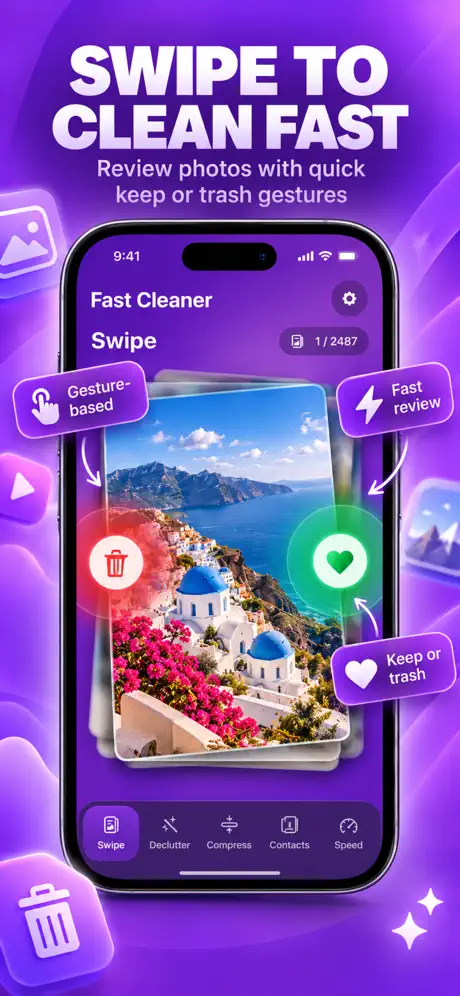
Keep the final decision about what to remove. Before a large cleanup, inspect a few suggestions and check the confirmation screen. Two photos can look alike while preserving different expressions, text, or moments.
Make a separate copy of irreplaceable files before experimenting with deletion. Confirm that you can actually open those copies. Don’t assume that a synced library will preserve a photo you delete from another connected device or app.
Google’s Delete photos & videos guide explains that deleting backed-up items in Google Photos can also remove them from devices with backup enabled. Its Free up space on your device feature serves a different purpose: removing device copies of media that is safely backed up. Check which action you are taking.
 Inspect suggested matches
 Decide what to keep
5. Check pricing and keep the promises realistic
Know what you are buying before starting a trial. Read the checkout screen for the trial length, renewal price, billing interval, included features, and cancellation instructions. Take time to review those terms rather than relying on a promotional banner.
Also ask whether the app solves your actual problem. Finding unwanted photos and reducing video file sizes can help recover storage. That is a specific, understandable benefit. A promise to make your entire phone “secure” needs separate evidence.
For a photo cleanup task, favor a clear explanation of the files the app can review, the choices you control, and the data it handles. Avoid judging safety from a marketing slogan.
How much does Fast Cleaner cost?
Fast Cleaner is free on Android. On iPhone, it is free to download, with optional in-app purchases. The US App Store listing shows the following prices, checked November 21, 2026.
| Option | Listed price |
|---|---|
| Android app | Free |
| iPhone download | Free; in-app purchases available |
| iPhone Monthly Subscription (US) | US $4.99 per month |
| iPhone Lifetime Pro Access (US) | US $14.99 |
Prices and offers can vary by country and platform. Check the purchase screen for included features, renewal terms, and any trial before confirming payment. A free download does not mean every feature is free.
Android pricing: free
Fast Cleaner for Android is free. Find it on Google Play as Duplicate Photo Cleaner AI by CrocApps. Android pricing confirmed by the developer on November 21, 2026. The iPhone subscription and Lifetime Pro prices above apply only to iPhone.
On iPhone, compare Apple’s full and limited photo-access explanation with Settings → Privacy & Security → Photos → the app. On Android, follow Google’s app-permission instructions; device menus vary.
Before starting a trial, record the exact checkout price, billing interval, trial end, and cancellation route shown on your device. Capture that screen for your own reference. The product images in this article show media review, not current permission dialogs or subscription terms.
Try it: review a cleaner app before you commit
Keep the app’s policy, store listing, and permission settings nearby. Record what you find below. The worksheet suggests questions to resolve; it does not inspect your phone, scan an app, or certify its security.
Your next steps
0 of 5 answers recorded
Start with any question. Your next steps will appear here.
Answers stay in this page’s memory. They are not saved or sent to a server and may be cleared when you leave or reload the page.
How Fast Cleaner fits these checks
Fast Cleaner’s stated approach is on-device media analysis with separate, limited analytics. Our privacy policy says that photos, videos, contacts, and on-device cleanup analysis are not sent to us or Firebase Analytics. It separately describes screen-event measurement and related diagnostics.
Fast Cleaner groups cleanup suggestions so you can review files before confirming removal. Features depend on platform capabilities, operating system, and permissions. Read our policy and the store listing for your platform, and apply the same checks you would to any other app.
For a practical walkthrough, start with finding and deleting duplicate photos on iPhone, or read about our on-device cleanup approach.
| What to check | Fast Cleaner’s approach |
|---|---|
| 1. Permissions | Photo access supports scanning. Contacts access is relevant only if you use contacts cleanup. Review the permissions requested on your device. |
| 2. Privacy disclosures | Read the Fast Cleaner privacy policy alongside App Privacy or Data safety in your platform’s store listing. |
| 3. Uploads and analytics | Our policy describes on-device media analysis and separate limited Firebase screen-event analytics and diagnostics. Media and cleanup analysis are not sent to us or Firebase Analytics. |
| 4. Deletion and backups | Product screens show suggestions you can review before removal. Check your own backup and sync settings; the app does not establish that a separate backup exists. |
| 5. Pricing | Android: free. iPhone: free download, US $4.99 monthly subscription or US $14.99 Lifetime Pro Access, as listed on the US App Store on November 21, 2026. See platform pricing and terms. |
What should Android users check in Fast Cleaner?
Fast Cleaner is free on Android, where it is listed as Duplicate Photo Cleaner AI by CrocApps. Review its photo and video permissions in Settings, inspect suggested files before confirming removal, and check Google Photos backup settings separately. Recovery behavior depends on the deletion action and photo service; the iPhone recovery period above is not an Android guarantee.
Common questions before using a photo cleaner
Does Fast Cleaner upload my photos?
According to the Fast Cleaner privacy policy, photos, videos, contacts, and on-device cleanup analysis are not sent to us or Firebase Analytics. Limited screen-event analytics and related diagnostics are collected separately.
Does full photo access mean an app uploads everything?
No. Photo permission controls which media the app can access. You need its data-handling disclosures to understand what it transmits. Apple explains full and limited access in Photos & Privacy.
Can I revoke access after cleaning?
Yes. Review access in your device settings using the iPhone and Android instructions above. Revoking permission changes future access through that permission; it does not establish that an existing server copy has been deleted. Check the provider’s retention and deletion policy if uploads occurred.
Does “on-device AI” mean no data is collected?
No. It describes where the stated analysis runs. A developer may separately collect analytics or diagnostics. Look for clear disclosures about media, usage information, and third-party services.
Is a cleaner necessary to remove duplicate photos?
Not always. You can review your library manually and check your photo app’s built-in tools first. A separate cleaner may be useful if its grouping or review workflow fits your needs. Choose it based on its behavior and data practices.
Make space.
Stay in the review loop.
Explore Fast Cleaner’s photo cleanup tools and read how we handle your data before you install.
Media analysis stays on-device. Limited analytics and diagnostics are handled separately.
Compare evidence before choosing a photo cleaner
| Check | Useful evidence | What it does not prove |
|---|---|---|
| App permissions | Device settings and the permission request. | That every accessible photo is uploaded. |
| Media processing | A specific policy and, where available, implementation testing. | That on-device analysis means zero analytics. |
| Fast Cleaner | Published policy, product review screens, and current store terms. | An independent security certification. |
Apple explains that developers report App Store privacy information. Use it together with the policy and the permissions you grant.
Platform source: Apple — App privacy information, checked November 21, 2026.

Platform documentation reviewed November 21, 2026. Official Apple and Google guidance is linked beside the claims it supports. Settings and service behavior can change. Fast Cleaner product descriptions come from our own policy and website; they are not an independent audit or a platform endorsement.