 PaperVault
Check the signing request first
Some documents accept a signature placed directly on the PDF; others require a dedicated service, identity check, witness, or particular signing sequence. Read the sender's instructions before editing the file. If you are unsure whether a drawn or inserted signature is acceptable for an important agreement, ask the recipient or a qualified professional.
Add a signature to a PDF
- Open the final version of the document and confirm it is the one you were asked to sign.
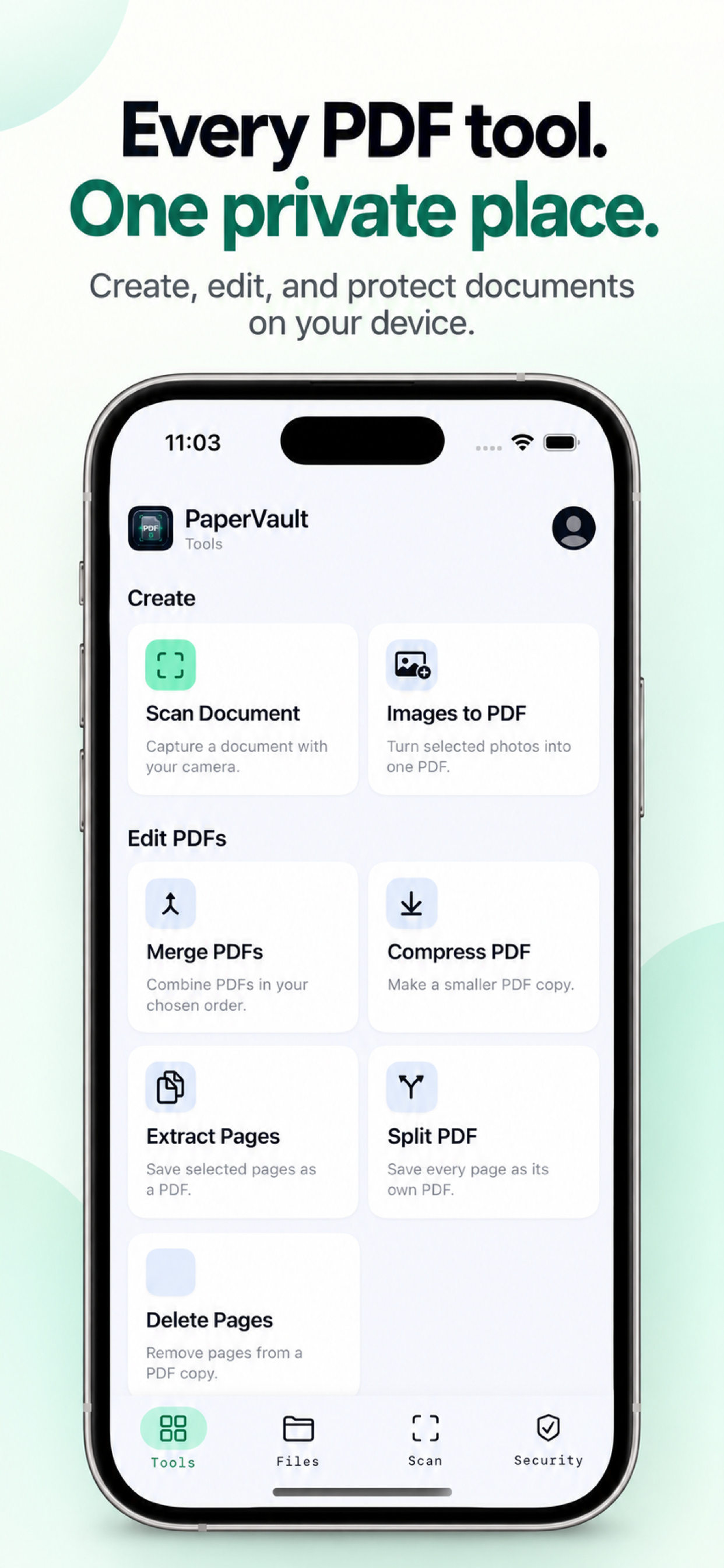
- Choose a PDF tool with a signature feature. PaperVault lists Sign PDF among its tools.
- Create or select your signature and place it in the designated signature area.
- Resize it so it is legible and does not cover labels, dates, or other text. Add a date only if the document asks for one.
- Save a signed copy under a clear filename, then reopen it to check every page and the signature placement.
- Return the signed file using the channel and format the recipient requested.
Do not overlook the final review
Check that the signature appears on the intended page and that no other content moved or became obscured. Make sure the saved file is not an unfinished draft. Keep an unsigned original when you may need to make corrections, and avoid sending the document to the wrong contact or an untrusted file-sharing service.
Signature image versus signing workflow
A visible signature placed on a PDF may not fulfill every recipient's signing workflow. Some requests call for a particular service, identity check, or sequence. Follow the sender's instructions, and confirm with them before editing if the requirements are unclear.