 PaperVault
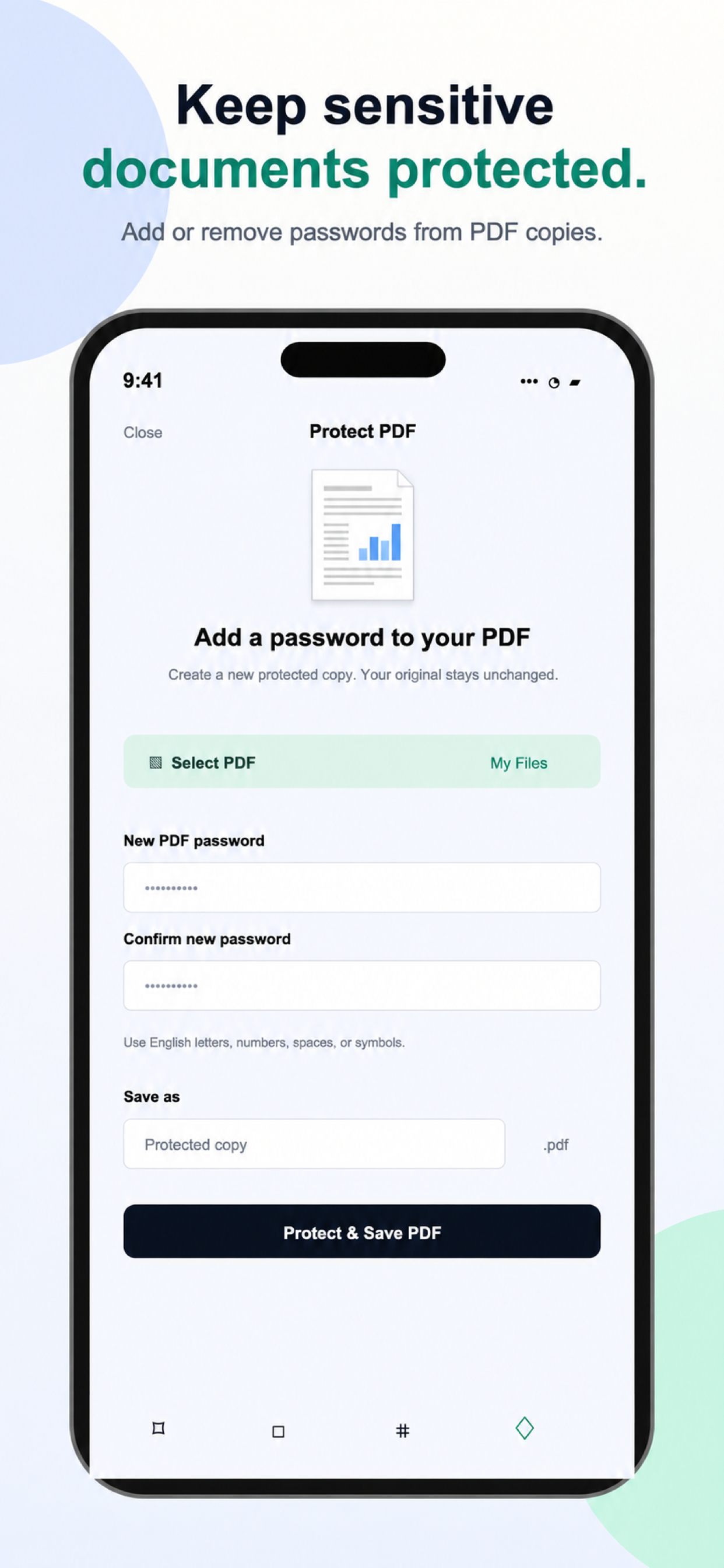
Protect a PDF copy
- Open the intended document and confirm it is the final version.
- Choose a PDF tool's password-protection feature. PaperVault lists Protect PDF, which creates a password-protected copy.
- Choose a unique password that is not easy to guess. A reputable password manager can help you store it.
- Save the protected copy separately from the original and open it again to confirm the password prompt works as expected.
- Send the PDF to the intended recipient. Share the password separately through a channel appropriate to the sensitivity of the document.
Share the password thoughtfully
A password helps only if the person who receives the file can open it—and if the password is not exposed alongside the file. Avoid posting it in the same public place or sending it to an unverified contact. Confirm the recipient has the right file and knows how to open it. For particularly sensitive information, follow your organization's approved sharing process.
What if you forget the password?
First check your password manager, secure notes, or the message used to exchange it. If someone sent you the file, ask the sender for the password or an authorized unprotected copy. Look for an original or backup that you created before applying protection.
PaperVault's password-removal feature requires the document's existing password. It does not recover an unknown password. Be wary of services that promise guaranteed recovery, and do not upload sensitive files to an unfamiliar website to try to unlock them.
Keep a usable original
Before you add protection, decide how you will retain the original and who needs access later. Store both versions only where appropriate, label them clearly, and keep the password somewhere secure and recoverable by you. Password protection is one part of document handling, not a substitute for checking who can access the file.