 PaperVault
Prepare the files
Find the PDFs you want to combine in Files or another provider. Give each file a recognizable name if you have several similar versions. Open the files briefly to make sure they are the right documents, not drafts or duplicates. If the pages will form one report or application, write down the order before you start.
Merge the PDFs
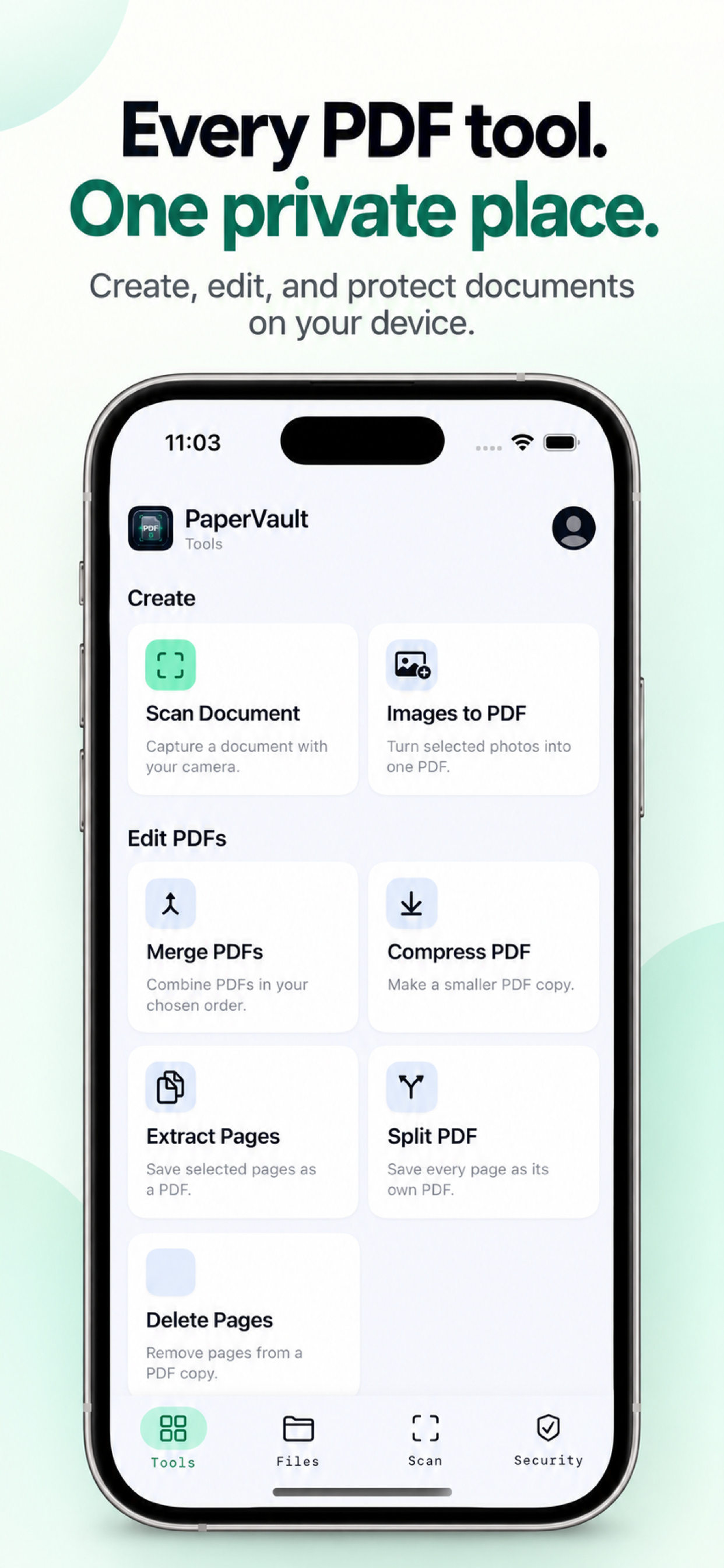
- Open a PDF app that supports merging and choose its merge feature. PaperVault lists Merge PDFs as a tool.
- Select the source PDFs using the app's file picker. iOS may ask you to choose files from Files, iCloud Drive, or another provider.
- Arrange the documents in the intended order. If page-level reordering is available, check where each document begins and ends.
- Create a merged copy and give it a name that distinguishes it from the originals.
- Open the result and scan the beginning, middle, and end. Confirm that page order, orientation, and legibility are right.
What to check in the final file
- Sequence: Does the first page introduce the document, and are supporting pages where a reader expects them?
- Completeness: Check for blank pages, skipped sections, and accidental duplicates.
- Orientation: A sideways page is easy to overlook in a long PDF.
- Sharing: Make sure the combined file contains only material meant for the recipient.
Merging changes the document you share, not the originals you selected; keep those originals until you have verified the combined copy and no longer need them. If the combined PDF becomes too large for a portal or email, make a compressed copy and check that text remains readable.
Privacy tip: When you select a file stored in iCloud Drive or another provider, that provider's own storage and transfer practices apply. See the PaperVault Privacy Policy for details about files chosen through the system picker.