 PaperVault
Why PDF files get large
A PDF with high-resolution scans or many photographs can be larger than a mostly text-based document. Compression tools may reduce image data or optimize the way content is stored. The trade-off depends on the file and settings, so there is no universal setting that guarantees both the smallest file and unchanged image quality.
A careful compression workflow
- Keep an untouched original in a safe location.
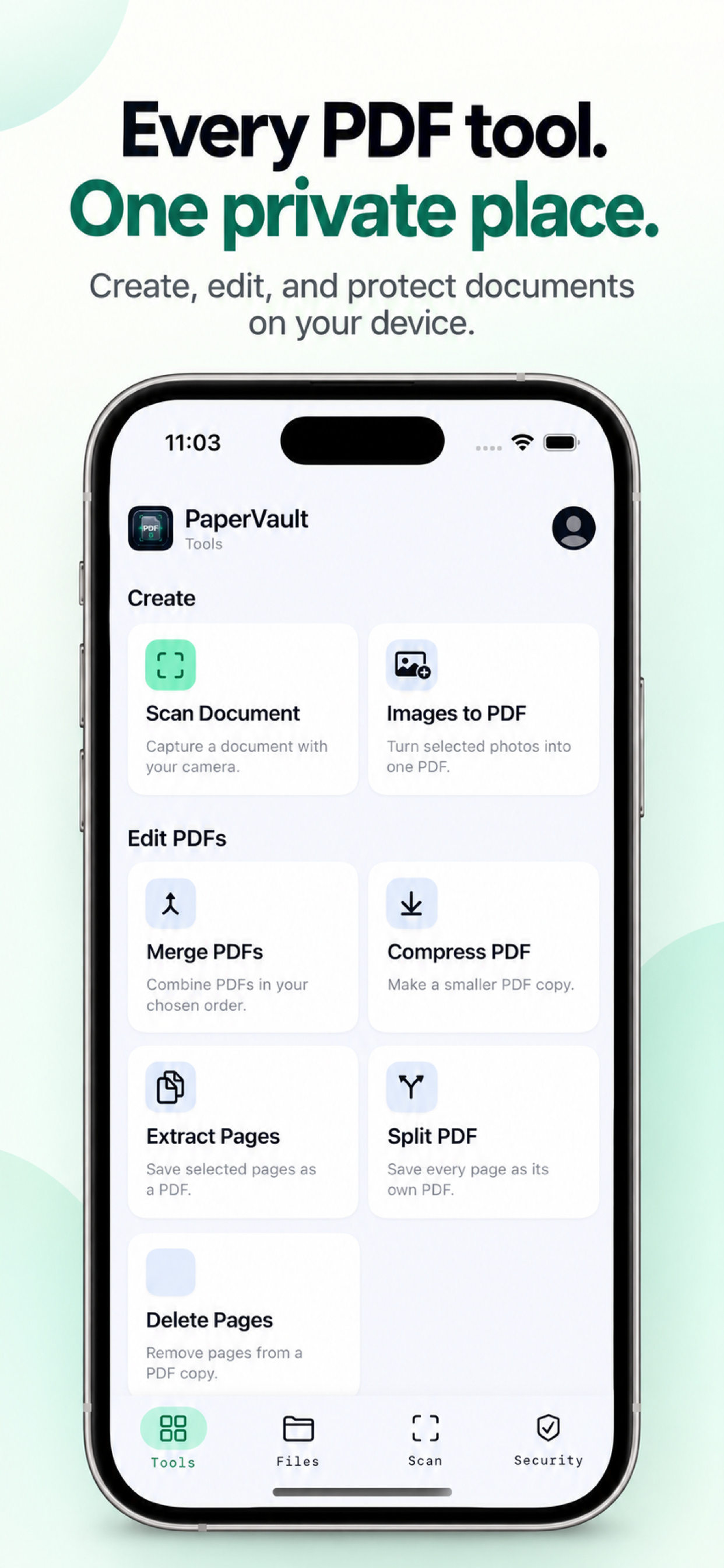
- Use a PDF tool's compress feature to create a copy. PaperVault lists PDF compression as a feature.
- Compare the copy with the original at normal viewing size and when zoomed in.
- Check tiny text, signatures, diagrams, tables, pale marks, and any scanned image with fine detail.
- Confirm that pages are still in order and the copy opens correctly.
- Share the compressed copy only if it meets the recipient's file-size requirements and remains readable.
If the text looks soft or details disappear
Return to the original and try a less aggressive compression option if one is available, or share the original through a file-sharing method the recipient accepts. If the source is a scan, capture it in better light and at a steady distance rather than relying on compression to fix a blurry image. A smaller file is not an improvement if someone cannot read a number or verify a signature.
Check file-size limits before exporting
Some forms and email services have maximum attachment sizes. Check the actual limit, then aim for a little below it in case the service counts the final transfer differently. If the PDF is still too large, ask whether the recipient can accept multiple files or a secure file link instead of repeatedly degrading the same copy.