 PaperVault
Before you scan
Place the paper on a flat, contrasting surface. Move it away from harsh glare and strong shadows, and wipe smudges from your camera lens. If the document has multiple pages, put them in the order you want before you start. For receipts or small print, make sure the text is large enough to read in the camera preview.
Scan paper into a PDF
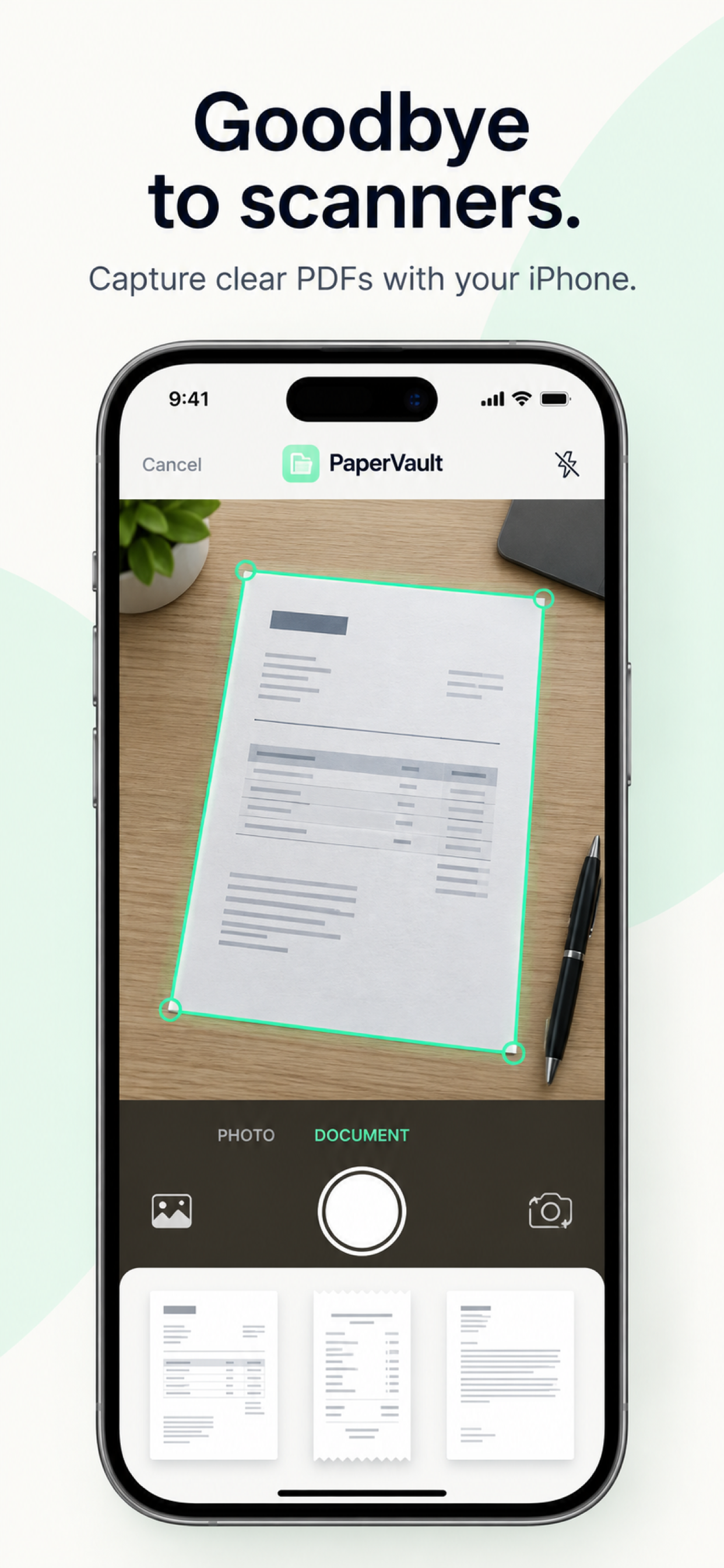
- Open a document-scanning app and choose its scan feature. In PaperVault, use Scan Document; the App Store listing describes automatic edge detection.
- Hold your iPhone above the page and keep all four edges visible. Follow the app's capture prompts rather than rushing the shot.
- Review the detected page boundary. Correct an edge or retake the page if a corner is missing, a finger covers text, or the image is blurred.
- Capture the remaining pages, then inspect their order and orientation. Rotate any sideways page before saving.
- Save or share the finished PDF. Open the saved file once and check that small print and page edges remain readable.
Make the scan easier to read
Good framing matters more than aggressive editing. Keep the phone steady, make sure the page is evenly lit, and avoid cropping close to text or signatures. If the document includes faint handwriting, check that a cleaned-up or high-contrast view has not erased light strokes. Keep an unedited photo or original paper when the scan is important for your records.
Check privacy before sharing
Look through every page for details you did not intend to send, such as a second document in the background or a personal note. A PDF scan can still contain sensitive information even if it is only an image. Share the file with the intended recipient, and choose a trusted storage provider if you save it outside the scanning app.