 PaperVault
Why a scan may not be searchable
A camera scan or photograph may look like a page while still being stored as an image. Searching for a word in an image-only PDF may return no match because there is no recognized text layer for the search tool to find. OCR attempts to identify the characters and associate them with the page.
Run OCR and check the result
- Start with a clear, upright scan. Retake a blurry or shadowed page if possible.
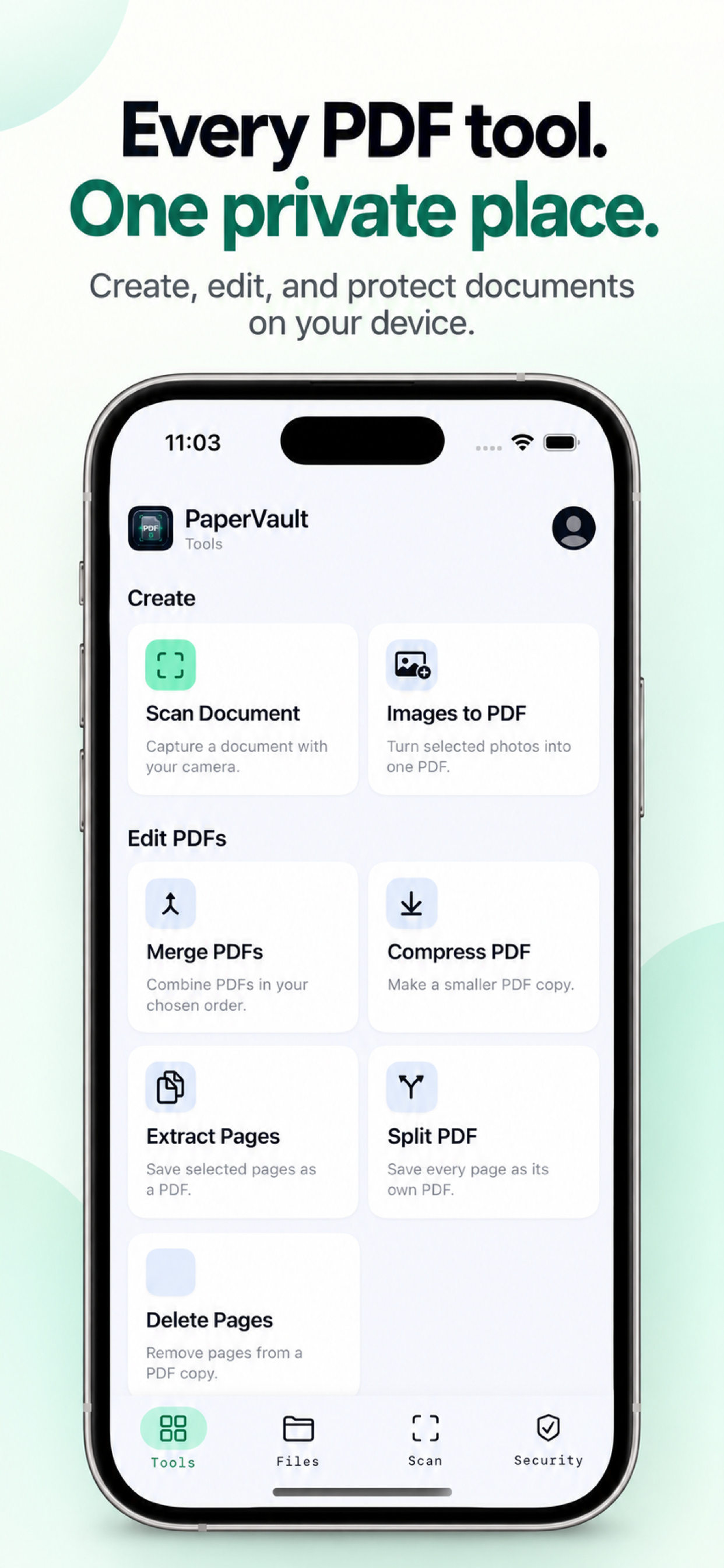
- Open a PDF app with an OCR feature and choose the document. PaperVault lists Live OCR and says OCR is processed on-device.
- Run text recognition, then search for a word you can clearly see on the page.
- Check selected or copied text against the original image, especially names, dates, amounts, addresses, and reference numbers.
- Save a new copy if you need to keep the original scan unchanged.
What can affect recognition?
OCR results depend on the source image and recognition system. Tesseract's quality guidance identifies low resolution, image noise, and skew as factors that can reduce recognition quality. Check difficult pages closely, and compare the extracted text with the original image.
When to verify by hand
Do not rely on OCR alone for a legal, financial, medical, or official record. Compare any information you plan to copy or act on with the visible page. If accuracy matters, have another person review it or use the original source document to confirm it. OCR makes documents easier to work with; it does not certify their contents.