
Duplicate photos are silently eating up your iPhone storage. The average iPhone user has 200-500 duplicate or near-identical photos they don't even know about. These come from burst shots, messaging apps, and simply saving the same image twice.
Quick Answer
To delete duplicate photos on iPhone: Open Photos → Albums → Duplicates (iOS 16+). For similar but not identical photos, use an app like Fast Cleaner which uses AI to find near-duplicates that Apple's built-in feature misses.
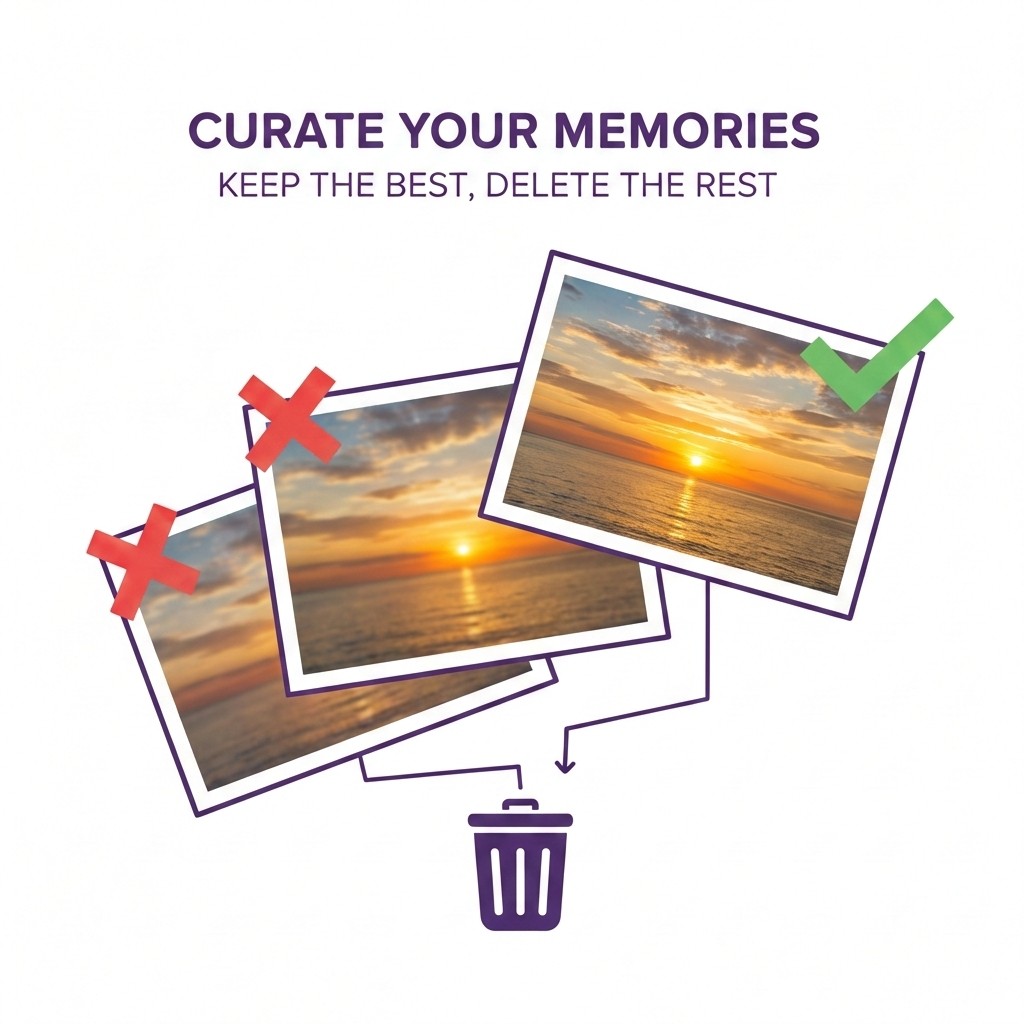
Why You Have Duplicate Photos
Before cleaning, it helps to understand where duplicates come from:
- Burst mode: Taking 10+ nearly identical shots
- WhatsApp/Telegram: Auto-saving received photos
- Instagram/Social media: Saving posts multiple times
- Photo editing: Apps creating copies when you edit
- iCloud sync: Sync errors creating duplicates
- HDR mode: Saving both HDR and non-HDR versions
- Screenshots: Taking the same screenshot multiple times
Method 1: Use iPhone's Built-in Duplicates Album (iOS 16+)
Apple added a native duplicate detection feature in iOS 16. Here's how to use it:
- Open the Photos app
- Tap Albums at the bottom
- Scroll down to Utilities
- Tap Duplicates
- Review duplicate pairs — iPhone shows them side by side
- Tap Merge to keep the best quality version
- Or tap Select → Merge All to clean everything at once
Pro Tip
The Duplicates album may take a few days to populate after you update to iOS 16+. Your iPhone scans your library in the background.
Limitations of Apple's Duplicates Feature
While useful, the built-in feature has significant limitations:
- Only finds exact duplicates (pixel-perfect matches)
- Misses similar photos (10 shots of the same sunset)
- Doesn't detect burst shot waste
- Can't find blurry versions of good photos
- Doesn't identify screenshots of the same content
Method 2: Use Fast Cleaner for AI-Powered Detection
For thorough duplicate cleaning, you need an app that finds similar photos, not just exact matches. Fast Cleaner uses on-device AI to detect:
- Exact duplicates: Same photo saved twice
- Similar photos: Multiple shots of the same scene
- Burst leftovers: Those 47 shots from trying to get one good picture
- Blurry versions: When you have both a sharp and blurry version
- Screenshots: Duplicate screenshots of the same content
How to use Fast Cleaner:
- Download Fast Cleaner from the App Store
- Grant photo library access when prompted
- Tap Find Duplicates on the home screen
- Wait for the scan to complete (1-3 minutes for most libraries)
- Review grouped duplicates — the app auto-selects the lower quality versions
- Tap Clean to remove selected duplicates
Find hidden duplicates
Fast Cleaner's AI finds duplicates that Apple's built-in feature misses.
Comparison: Built-in vs. Third-Party Apps
| Feature | iOS Duplicates | Fast Cleaner |
|---|---|---|
| Exact duplicates | ✓ | ✓ |
| Similar photos | ✗ | ✓ |
| Burst shot cleanup | ✗ | ✓ |
| Blurry photo detection | ✗ | ✓ |
| Screenshot grouping | ✗ | ✓ |
| Auto-select worst quality | ✗ | ✓ |
| Privacy (on-device) | ✓ | ✓ |
| Price | Free | Free / Premium |
How Much Space Can You Save?
The amount of storage you recover depends on your photo library size and habits:
- Light users (under 1,000 photos): 500MB - 2GB
- Average users (1,000-5,000 photos): 2GB - 5GB
- Heavy users (5,000+ photos): 5GB - 15GB+
Users who frequently use burst mode, messaging apps, or take multiple shots of the same subject will typically recover the most space.
Tips for Preventing Future Duplicates
Once you've cleaned up, prevent duplicates from accumulating again:
1. Turn Off Auto-Save in Messaging Apps
- WhatsApp: Settings → Chats → Save to Camera Roll → Off
- Telegram: Settings → Data and Storage → Save to Gallery → Off
2. Review Burst Shots Immediately
After taking burst shots, select your favorite and tap "Keep Only 1 Photo" to delete the rest immediately.
3. Disable HDR Double-Save
Go to Settings → Camera and turn off "Keep Normal Photo" under HDR.
4. Run Monthly Cleanups
Set a monthly reminder to scan for new duplicates. A quick 5-minute cleanup prevents accumulation.
Frequently Asked Questions
Will deleting duplicates remove photos from iCloud?
Yes, if you have iCloud Photos enabled, deleting duplicates removes them from all your devices. However, they go to "Recently Deleted" first, giving you 30 days to recover any mistakes.
Can I recover deleted duplicate photos?
Yes. Deleted photos stay in the "Recently Deleted" album for 30 days. Open Photos → Albums → Recently Deleted to recover any photos you want back.
Why doesn't my iPhone show a Duplicates album?
The Duplicates album requires iOS 16 or later. Update your iPhone in Settings → General → Software Update. Also note that it may take several days to appear while your iPhone scans your library.
Are duplicate cleaner apps safe?
Reputable apps like Fast Cleaner process everything on your device — no photos are uploaded to servers. Always check that an app has good reviews and a clear privacy policy before granting photo access.
What's the difference between duplicates and similar photos?
Duplicates are exact copies (same image saved twice). Similar photos are different shots that look nearly identical (like 5 photos of the same sunset taken seconds apart). Apple's built-in feature only finds duplicates; apps like Fast Cleaner find both.
Summary
Removing duplicate photos is one of the easiest ways to free up iPhone storage. Start with Apple's built-in Duplicates album for quick wins, then use an AI-powered app like Fast Cleaner to catch similar photos that the native feature misses.
Most users can recover 2-10GB by removing duplicates — that's space for thousands more photos or dozens of apps.
Clean up your photo library today
Download Fast Cleaner and remove duplicates in minutes.